

Expenses
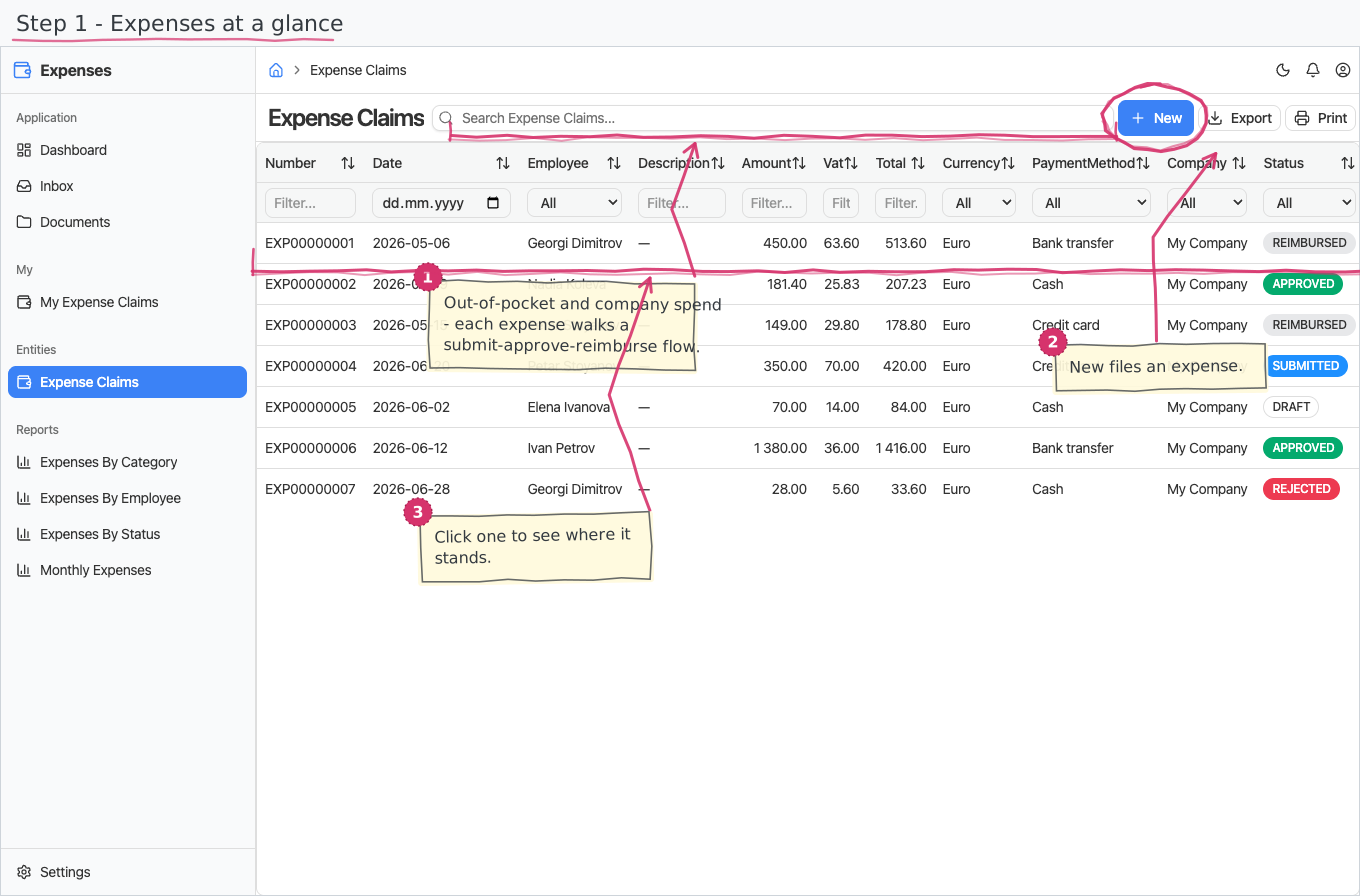
Record employee expenses — a flight, a software subscription, a tank of fuel — and take each one through a submit → approve → reimburse flow — from the full page or your own My Expense Claims surface.
Where you find it: the People sidebar group (its category and status nomenclatures are on the Settings page). Bundled in Construction and Professional Services; shown by the Expenses lens.
The tour in pictures
What you can do
Expense claims
An expense claim is a document with line items — a header for who/when/how it is paid, and one line per spend — with the VAT arithmetic done for you:
- The claim (header) — pick the Employee who spent the money (required) and the date (required), plus an optional free-text description. The paying Company (your base company) and the Payment method (Bank transfer) start pre-filled; pick a Currency as needed.
- The line items — add one line per spend (hotel, flight, taxi, daily allowance, …). Each line has its own Category (required — Travel, Meals, Fuel, …), a description, the net amount (required), an optional Supplier/merchant, and a Tax rate — the line's VAT rate is copied from that tax rate (default 20%). Each line's VAT (= amount × VAT rate) and Total (= amount + VAT) calculate themselves.
- Claim totals — the header amount, VAT and Total are read-only footers that add up the line items automatically; you never type them.
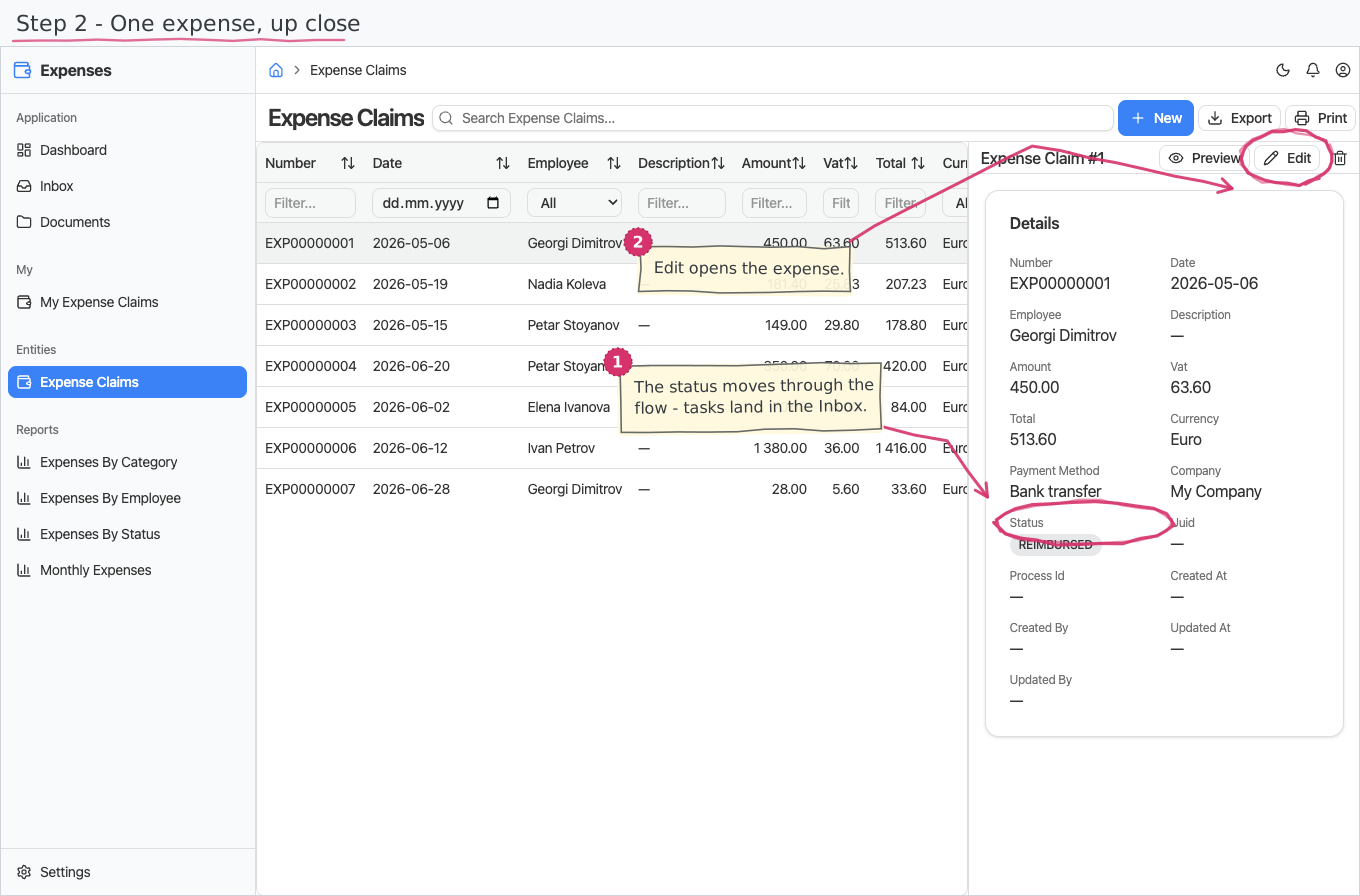
- Number — you never type it. The sequential EXP-number from the shared "Expense" series is stamped automatically the moment the claim is saved; it is the record's title ("EXPENSE CLAIM EXP00000001").
- Status pill — the title bar shows the status as a coloured badge: DRAFT → SUBMITTED → APPROVED → REIMBURSED, with REJECTED.
My expense claims (personal surface)
You do not need the full back-office page to file your own expenses. Under My Applications (the personal My shell) you get a My Expense Claims surface that shows only your own claims — the employee is already you and cannot be changed, and you see and enter your own amounts. Create a claim here and it enters the same flow below; you are led to it from the task in your Inbox. (The full page stays for back-office users, who can see and correct everyone's expenses.)
The claim flow (who does what)
Every new expense starts a small workflow; the tasks appear in the assignees' Inbox and inline on the expense itself:
- Submit — you (the employee) file the claim; it becomes SUBMITTED and goes for approval.
- Approve — the approver sees the number, date, employee, claim amount and total, and approves or rejects. Reject marks the claim REJECTED; approve moves it to APPROVED (awaiting reimbursement).
- Reimburse — the payer sees the number, employee, total and payment method, and confirms the payout; the claim becomes REIMBURSED.
Printing
Expense claims print to a branded standard layout. Open the document and use Print to view it or save it as PDF; the template lives under Documents and can be customised per company. See how printing works for the shared mechanics. Claims print in Bulgarian or English — the Print button asks which language you want.
Reports & dashboard
Which claims count. The figures below cover claims that are actually in play - submitted, approved and reimbursed. A claim you are still drafting is not an expense, and a rejected one never becomes one, so neither moves a total. Expenses by Status is the exception: it shows every claim, each status in its own row.
- Expenses by Category — count, net and total value per category; also a dashboard top-5 list widget.
- Expenses by Employee — who spent how much.
- Expenses by Status — the approval pipeline: how many expenses, worth how much, in each status.
- Monthly Expenses — expenses per month as a bar chart; feeds the dashboard "Expenses (this month)" KPI.
Settings
- Expense Categories — the spend classification (eight pre-seeded: Travel, Office supplies, Utilities, Software, Meals, Fuel, Rent, Other; add your own). The categories are multilingual — the module ships English and Bulgarian names, and the list follows the language chosen in Region & Language.
- Expense Statuses — the status nomenclature (DRAFT, SUBMITTED, APPROVED, REIMBURSED, REJECTED pre-seeded; changing names changes the badges everywhere).
Shipped data
Categories (in English and Bulgarian) and statuses are pre-seeded (above); a new company starts with no expenses. The optional demo-data companion ships a batch of demo expenses across employees and categories — already numbered and in final statuses — for trials.
Works together with
- Employees — the submitting employee on every expense.
- Suppliers — the optional merchant the expense was paid to.
- Tax Rates — the VAT-rate default; Currencies and Payment Methods — the money side; Companies — the paying company.
- Document numbering (built into the platform) — the "Expense" number series.