

Timesheets
Book project hours day by day on a calendar, watch them roll up to per-employee and per-timesheet totals priced at each person's billing rate, take the timesheet through a submit → approve flow, and turn the approved result into a draft sales invoice.
Where you find it: the Projects sidebar group (the timesheet-status nomenclature is on the Settings page). Bundled in Construction and Professional Services; shown by the Timesheets lens.
The tour in pictures
What you can do
Project Timesheets
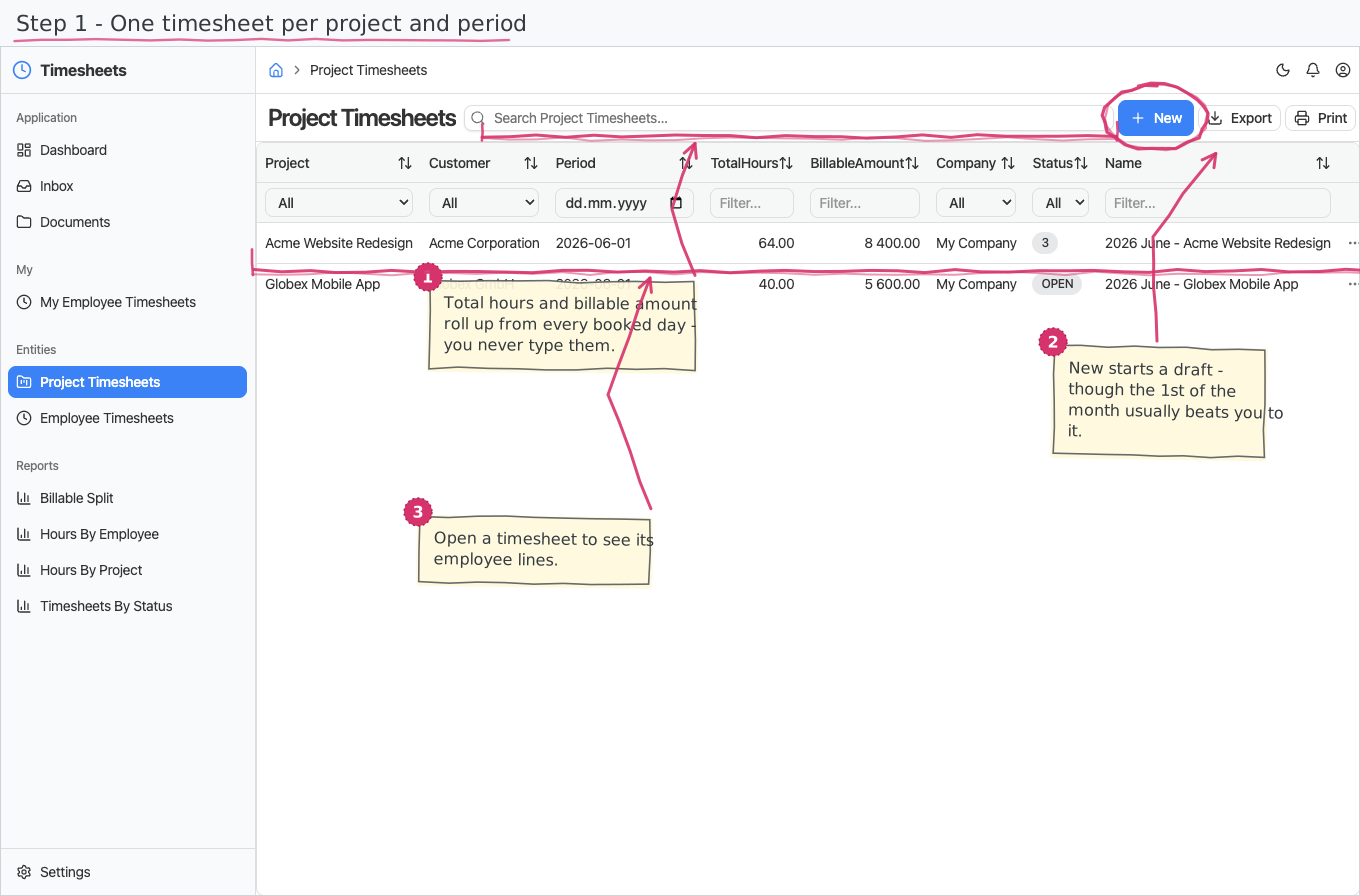
A timesheet is a document: one project, one period, and a line per employee who worked on it.
- Header — you pick the Project (required) and the period. The period is a whole month, and its picker offers exactly that: a year header with a twelve-month grid — no day to choose, no accidental "June 3rd" period. The Customer fills itself from the chosen project's customer, and the Company defaults to your base company.
- Number — you never type it. Each employee timesheet shows a placeholder; its real sequential TS-number is stamped automatically when it is approved, from the shared "Project Timesheet" numbering series, and becomes that document's title. The project-month itself carries no number — its title is the period plus the project name.
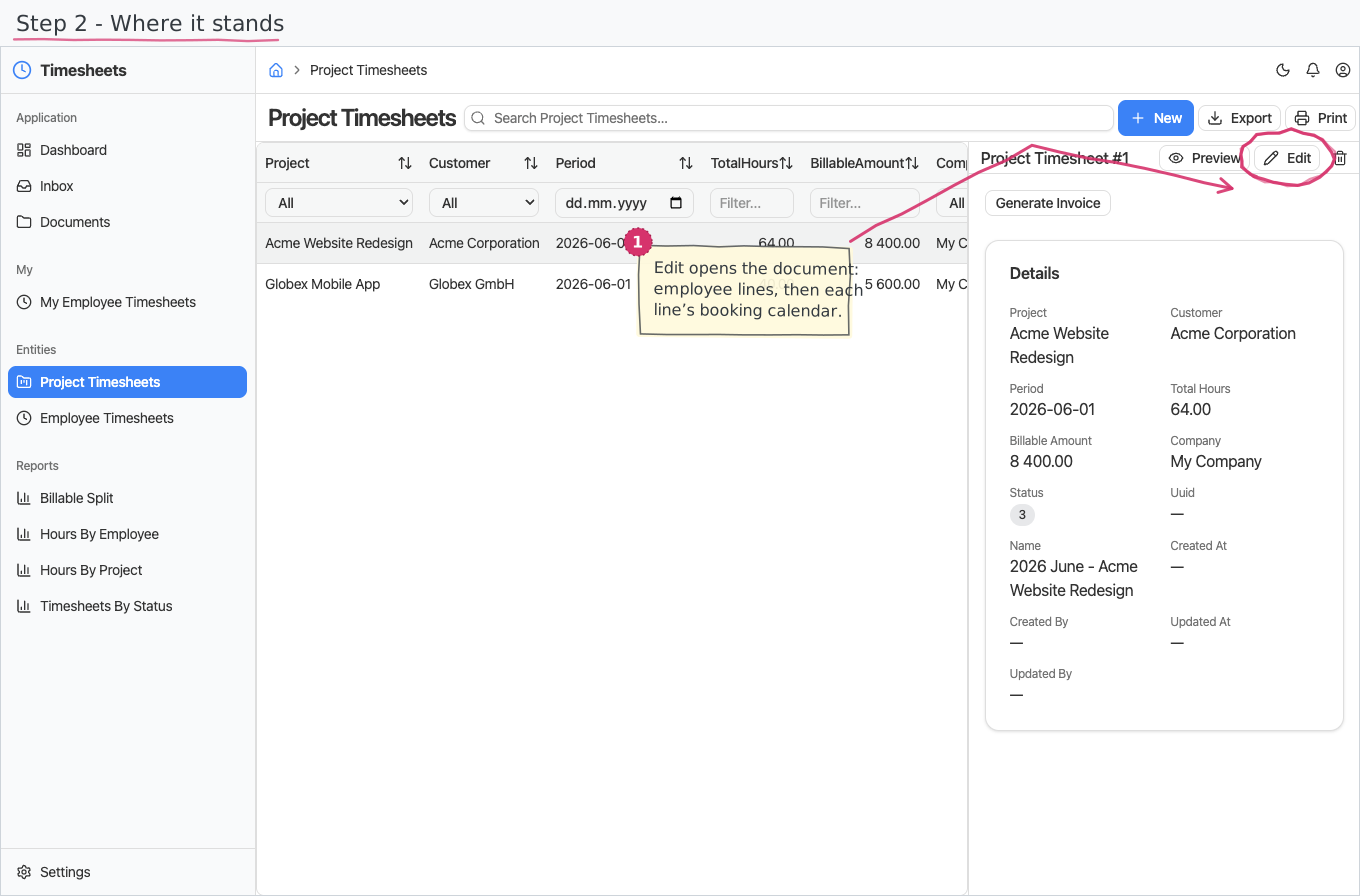
- Status pill — the title bar shows the timesheet's badge: DRAFT → SUBMITTED → APPROVED, with REJECTED when the manager sends it back. The referenced project-month carries its own status (OPEN → INVOICED): it flips to INVOICED automatically the moment its invoice is generated (see Generate Invoice below).
- Total hours and billable amount are read-only roll-ups — the sums of the employee lines below, which are themselves sums of the day allocations. Edit a single day and both levels recompute on their own.
- Next period without retyping — no manual roll-forward is needed: the monthly schedule creates next month's timesheets pre-filled (see Automatic monthly timesheets below).
- Generate Invoice — from a timesheet, create a draft Sales Invoice for its customer and company, dated today, with its own numbering and approval flow. Selecting the project-month shows a Generate Invoice button on its record; because it creates data, it asks you to confirm before running. The invoice comes with its lines already filled in: one line per employee on the timesheet, named after the employee and priced at that employee's billable amount (quantity 1), with standard VAT — so the customer reads whose work each line is and the invoice total matches the labour billed. You can still edit or add lines on the invoice before issuing it. As soon as the invoice exists, the timesheet's own status flips to INVOICED, so an already-billed period is visible at a glance and won't be invoiced twice by accident.
Employee timesheets (the lines)
One line per employee on the timesheet. Each line's total hours and billable amount are read-only — they are the sums of that employee's day allocations (below).
Day Allocations — the booking calendar
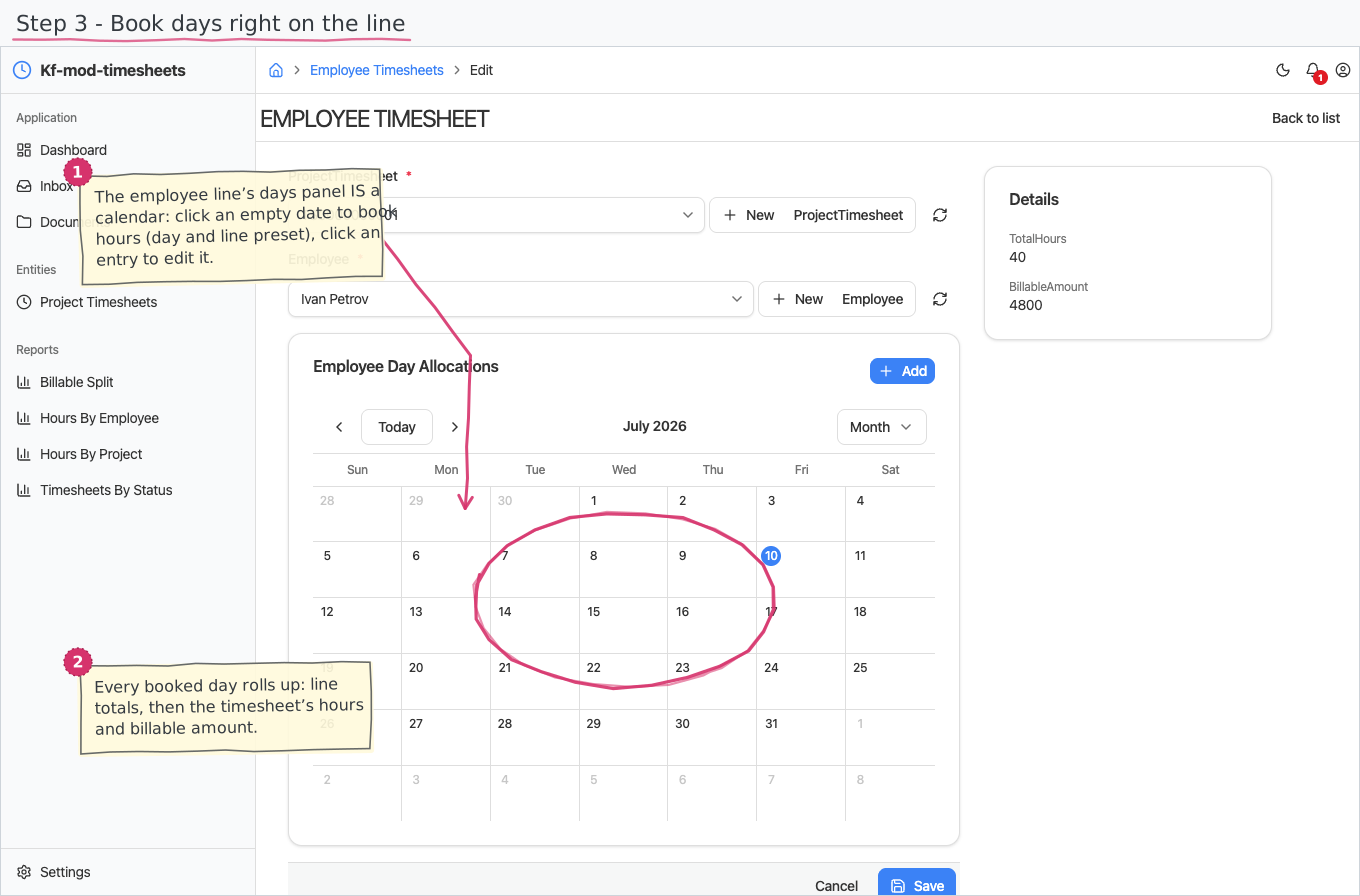
The actual hours live on a calendar embedded right in the employee line (month view): open an employee timesheet and its days panel is the calendar — on the timesheet's page and on the line's edit form alike. Each booked day shows as an entry titled with its hours and coloured by its billable flag. There is no separate day-allocations page to hunt for; the calendar always shows exactly that line's days.
- Click an empty date to book it — the day and the employee line come prefilled; enter the hours (optionally a project Task). Click an existing entry to edit that day.
- The billing rate resolves itself, server-side — from the employee's project assignment, as a snapshot: days already booked keep the rate they were booked at. Nobody picks an assignment any more, and the employee never sees the rate or the amount at all — billing internals live on the back-office surface only.
- Amount (= hours × rate) calculates itself and rolls up through the employee line to the timesheet's totals — visible to managers, not to the employee.
- The Billable flag defaults to on — untick it for non-billable time (it also colours the calendar entry).
The approval flow (who does what)
Every new timesheet starts the approval process; tasks appear in the assignees' Inbox:
- Submit — the employee reviews number, project, period and total hours, and submits; the status moves to SUBMITTED.
- Approve — the manager sees the totals including the billable amount and approves or rejects. Approve sets APPROVED and stamps the real TS-number; reject marks the timesheet REJECTED and returns the Submit task to the employee's Inbox — correct the days and resubmit in the same flow.
- Locked once approved — an APPROVED timesheet (and an INVOICED project-month) refuses edits and deletes; corrections happen before approval, or through the manager rejecting first.
My Employee Timesheets — the employee's own surface
Every employee gets a personal My Employee Timesheets page (also under the Personal shell umbrella at /services/web/personal/): only your lines, with a name like "2026 July - Acme Website Redesign - Ivan Petrov", the days calendar embedded, and no billing internals — the rate, the day amounts and the rolled-up billable amount are all held back (they never even leave the server for this page). You cannot see or touch anyone else's time — and corrections for someone away remain possible for managers on the regular pages.
Automatic monthly timesheets — pre-filled and ready to confirm
You usually don't create anything yourself: on the 1st of each month the Projects module generates the whole month for every active project — the timesheet, one line per assigned employee, and one 8-hour allocation per working day. A Submit task lands in each employee's own Inbox the moment their timesheet exists: adjust hours (0 is fine), set project tasks, remove days — then submit; the manager's approval runs as usual (DRAFT → SUBMITTED → APPROVED). The unchanged month is literally one click.
Printing
Employee timesheets print to a branded standard layout. Open the document and use Print to view it or save it as PDF; the template lives under Documents and can be customised per company. See how printing works for the shared mechanics. Timesheets print in Bulgarian or English — the Print button asks which language you want.
Reports & dashboard
Which hours count. The employee-hours figures cover hours somebody has stood behind - submitted and approved. A timesheet still being filled in, or one sent back as rejected, does not count. Hours by Project counts both open and invoiced project timesheets, since invoiced means the hours were billed, not withdrawn. Timesheets by Status shows every timesheet, each status in its own row.
- Hours by Project — total booked hours per project, as a bar chart.
- Hours by Employee — total booked hours per employee, as a bar chart.
- Billable Split — billable vs non-billable hours, as a doughnut chart.
- Timesheets by Status — the approval pipeline: count per status; also a dashboard counter widget ("Timesheets").
Settings
- Timesheet Statuses — the project-month states (OPEN, INVOICED pre-seeded; INVOICED is set automatically when the invoice is generated).
- Employee Timesheet Statuses — the timesheet document's approval states (DRAFT, SUBMITTED, APPROVED, REJECTED pre-seeded).
Shipped data
Timesheet statuses are pre-seeded (above); a new company starts with no timesheets. The optional demo-data companion adds two demo timesheets with three employee lines and thirteen booked days (totals already rolled up) for trials.
Works together with
- Projects — the engagement, its tasks, and the team assignments whose billing rates price every booked day; the monthly schedule that creates the draft timesheets.
- Employees — who books the hours; the employee's manager approves.
- Customers / Companies — the timesheet's customer comes from the project; both carry over to the generated invoice.
- Sales Invoices — Generate Invoice turns an approved timesheet into a draft sales invoice.
- Document numbering (built into the platform) — the "Project Timesheet" TS-number series.