

Sales Invoices
Issue sales invoices to your customers, take each one through an approve → issue → send flow, and watch payments settle against it automatically until it is paid. Corrections go through typed credit and debit notes, and a proforma invoice covers the pay-first-invoice-later workflow.
Where you find it: the Sales sidebar group (its status and sent-method nomenclatures are on the Settings page). Bundled in Construction, Logistics, Professional Services, Retail and Wholesale; shown by the Billing lens (the sales-invoice list also appears in the Timesheets lens).
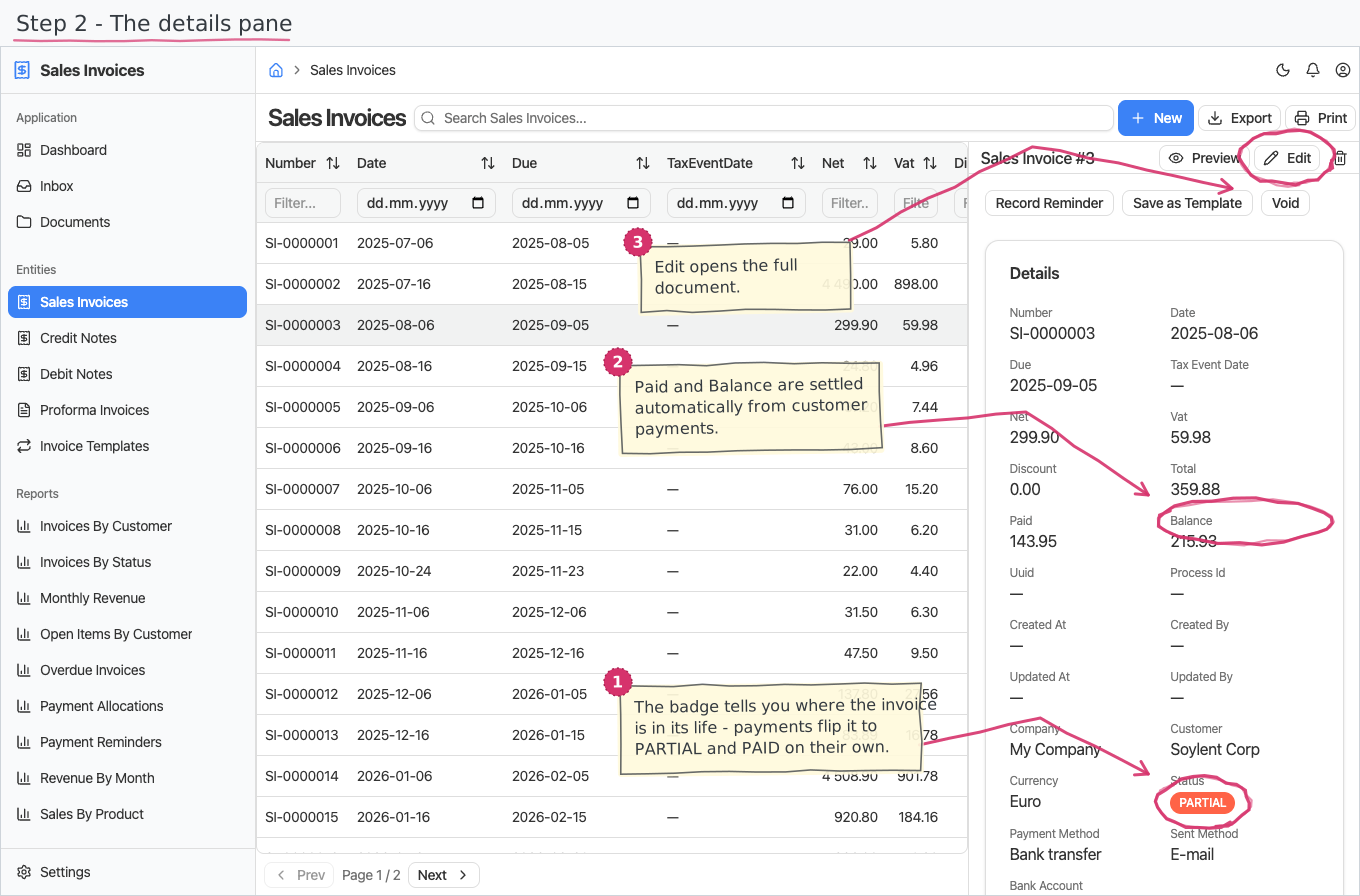
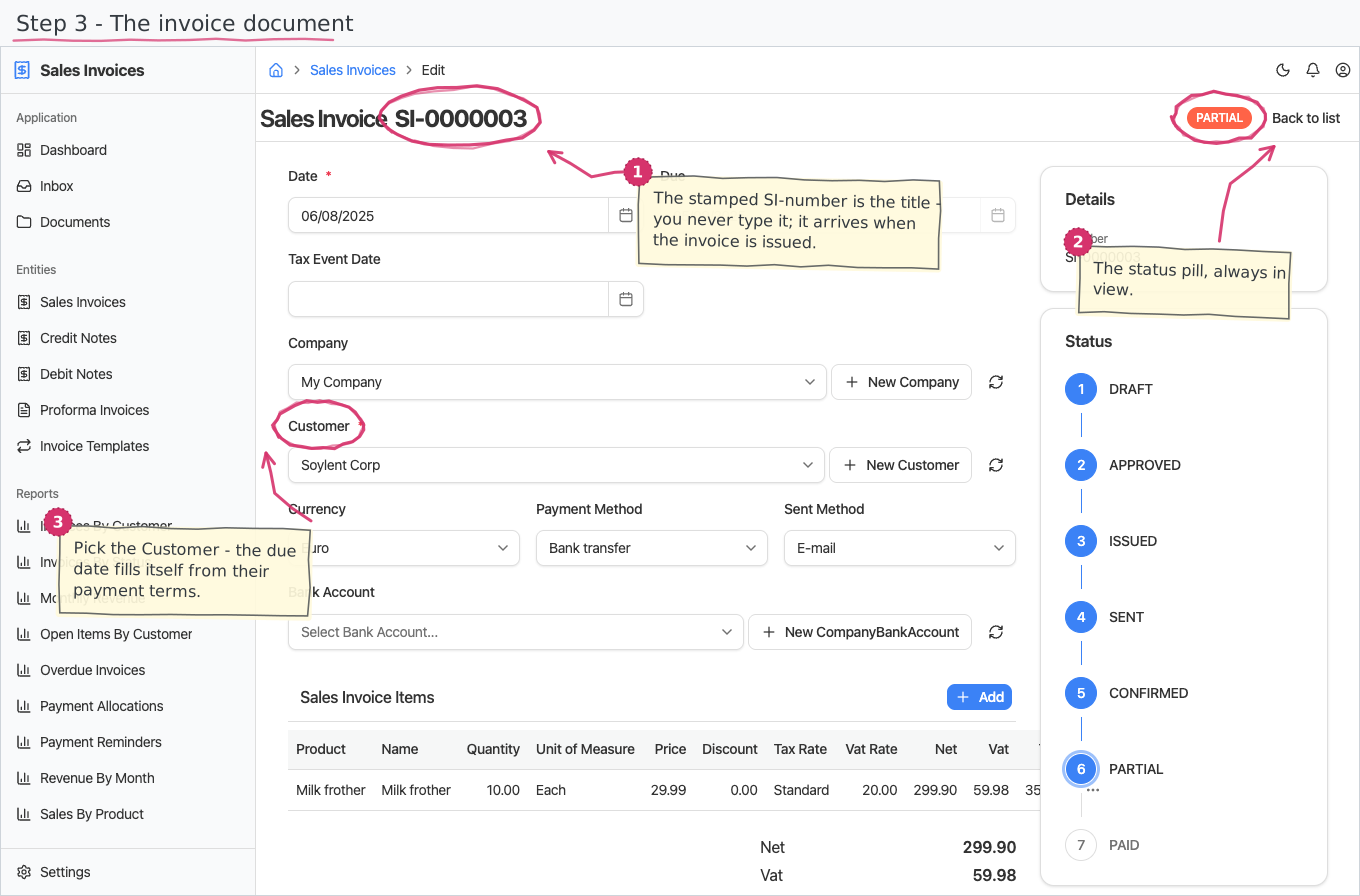
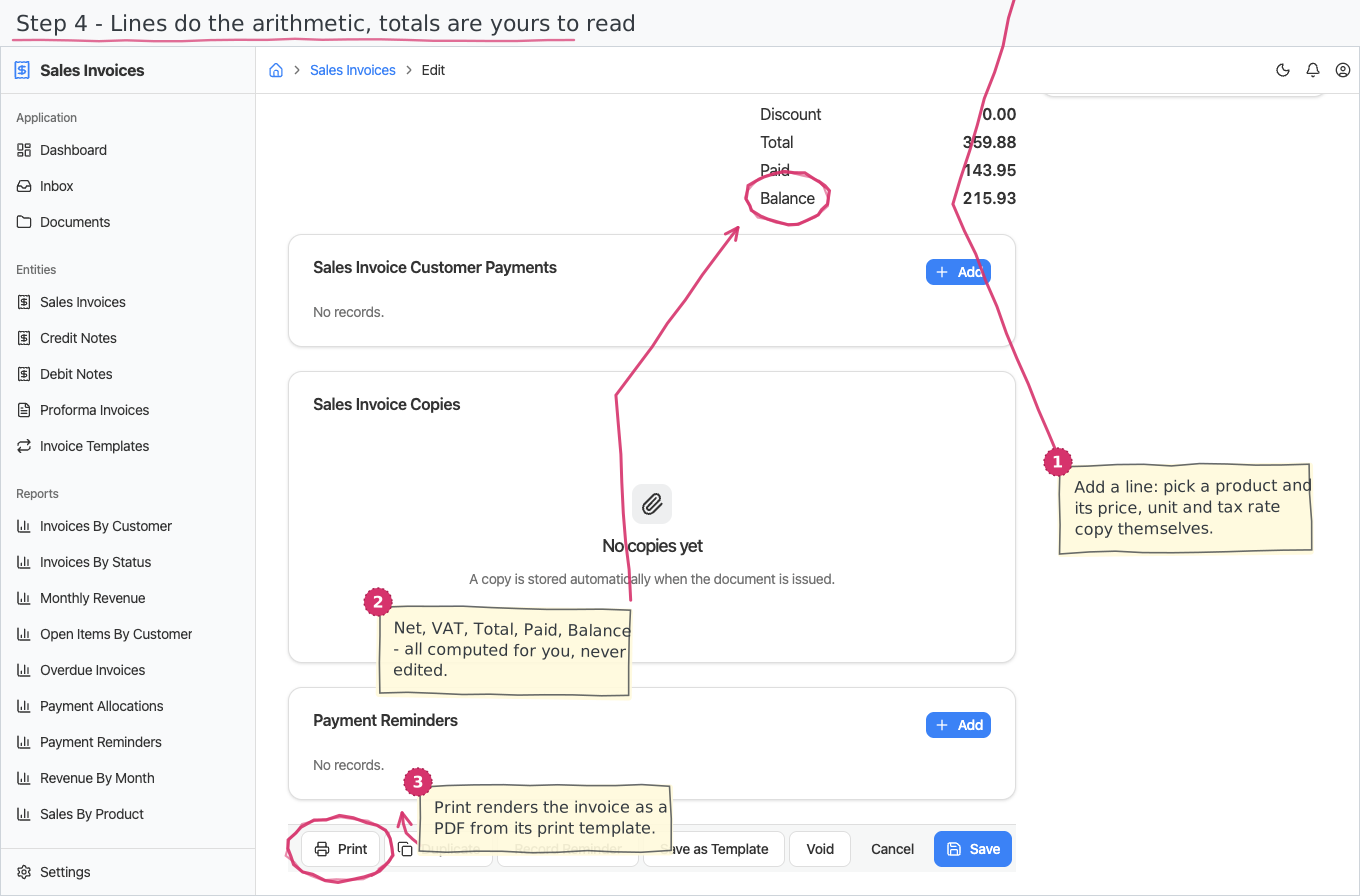
The tour in four pictures
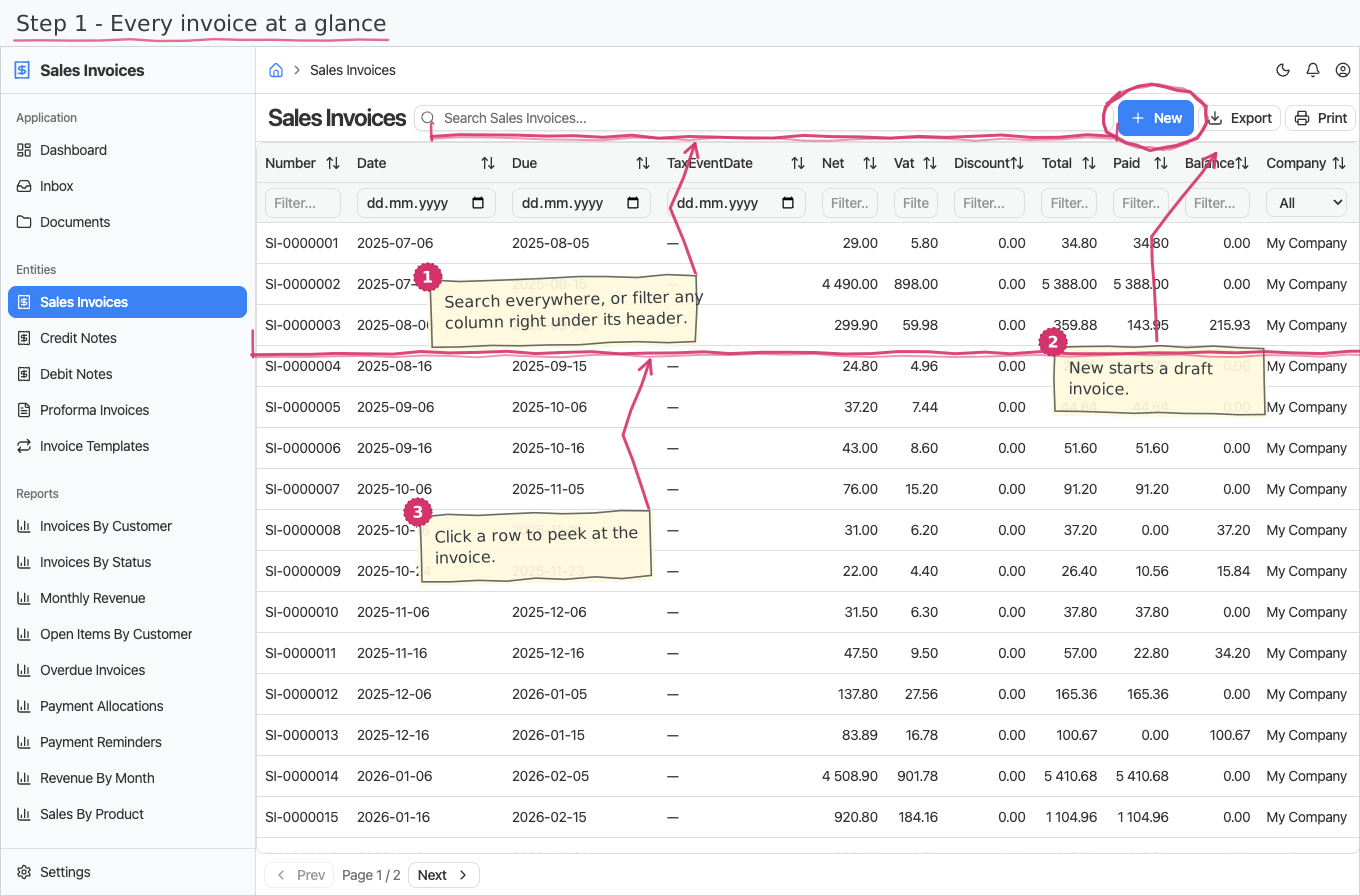
What you can do
Sales Invoices
An invoice is a document: a header, a line-items table, and a totals footer.
- Header — you pick the Customer (required) and the invoice date, optionally a due date and the tax event date (BG-mandatory, usually the document date). Everything else starts pre-filled: the issuing Company (your base company), the Currency, Payment method (Bank transfer) and Sent method (E-mail) — all editable.
- Due date fills itself when the customer has payment terms: leave it empty and it becomes the invoice date plus the customer's due days; a date you pick yourself is respected.
- Currency fills itself from the issuing company's base currency (set on the company record; a new tenant ships EUR), and a currency you pick is respected. The same applies to credit notes, debit notes, proformas and invoice templates — and to invoices other modules generate for you, such as Generate Invoice from a project timesheet. It is worth leaving correct: settlement matches a payment to an invoice only on an exact currency match, so an invoice in the wrong currency never clears itself no matter how much money arrives against it.
- Bank account — which of your company's accounts prints on the invoice; the picker lists only the chosen company's accounts (see Companies).
- Number — you never type it. A new invoice shows a placeholder; the real sequential SI-number is stamped automatically the moment the invoice is issued (see the flow below), using the shared document-numbering series. The number is the document's title ("SALES INVOICE SI-00001231").
- Status pill — the title bar shows the status as a coloured badge: DRAFT → APPROVED → ISSUED → SENT → CONFIRMED, with CANCELLED (rejected), VOIDED (annulled after issue — see below), and PARTIAL / PAID set automatically as money arrives.
- Printed copies — a read-only Attachments panel lists the printed PDF copies the system stores automatically each time the invoice is issued. You can download them (to re-send or file), but you cannot upload or delete them — they are the tamper-proof record of exactly what was issued. Each is labelled with its version; the invoice keeps its number across corrections, and every re-issue adds the next version (see the flow below).
- Print in Bulgarian or English — the invoice's print layout ships in both languages, and the Print button asks which one you want. On the Bulgarian printout your own company's details (name, address, manager/МОЛ, bank) come from the local-language fields of the company profile (see Companies); the customer's details print as entered.
- Totals footer — Net, VAT, Discount, Total, Paid, Balance are read-only sums over the line items and payment allocations. You never edit them.
Invoice lines
Add lines in the items table; each line does most of the arithmetic for you:
- Pick a Product — the line's name, price, unit of measure and tax rate are copied from the product's defaults the moment you pick it (the unit and tax-rate dropdowns are narrowed to the product's own). All stay editable per line, but the tax rate is required — every invoice line must state one. You pick the product in the line dialog; the items table itself shows the resulting Name column, not a separate Product column.
- Enter the quantity (and a discount if any).
- Net (= quantity × price), VAT (from the line's VAT-rate, default 20%) and Total (= net + VAT − discount) calculate themselves — previewed live in the line dialog, recomputed on the server on save.
Lines without a product work too — type a free-text name and a price.
Payment allocations
The third tab of the document links customer payments to the invoice, amount by amount:
- Automatic (the normal case): when an invoice is issued, the customer's unallocated payment balance is pulled onto it; and when a new customer payment arrives, it spreads itself across that customer's open invoices, oldest first (matching customer and currency). Allocations update the invoice's Paid/Balance and flip the status to PARTIAL or PAID on their own.
- Manual: add an allocation row yourself — the customer picker is pre-narrowed to the invoice's customer, and the payment picker then lists only that customer's payments (with their booking date and bank transaction number shown). The amount defaults to the payment's full amount and can be reduced for a partial allocation.
The approval flow (who does what)
Every new invoice starts a small workflow; the tasks appear in the assignees' Inbox and inline on the invoice itself:
- Approve — the approver sees number, dates, customer and total, and approves or rejects. Reject cancels the invoice (CANCELLED); approve moves it to APPROVED.
- Credit gate (automatic) — right after approval the system compares the customer's open invoice balances plus this invoice against the customer's credit limit (empty = unlimited). Within the limit the flow continues unnoticed; over it, a Credit Hold task appears in the approver group's Inbox with Proceed / Cancel — an over-limit invoice never issues silently, and never blocks a deliberate human decision either.
- Issue — the issuer confirms; the invoice becomes ISSUED and the real sequential number is stamped. A printed PDF copy is stored automatically (version 1, in the read-only Attachments panel), and any open customer credit is auto-allocated right after.
- Send — the sender picks the Sent method (E-mail / Delivery / Pickup) and confirms; the invoice becomes SENT and the invoice is e-mailed to the customer automatically — the same PDF you would print, attached to a short covering note that names the invoice number, the amount due and the due date. It goes to the e-mail address on the customer's record; if that is empty, nothing is sent and the flow simply carries on (fill the address in and re-send from the invoice). Sending needs the instance's outgoing-mail configuration.
- Confirm — the sender confirms the sent invoice is correct. Confirmed → CONFIRMED. If it is not confirmed, the invoice returns to DRAFT for correction: edit it, then take it through Issue again — the number stays the same, and a new printed copy version is stored (version 2, 3, …). This is the lawful way to correct a not-yet-accepted invoice without losing the audit trail of what each version looked like.
From there payments take over: PARTIAL when something is paid, PAID when the balance reaches zero.
Invoice templates — recurring billing
The same invoice every period (hosting, retainers, subscriptions) is described once as an Invoice Template — a recipe, not a document: a name ("Acme — monthly hosting"), the customer, the lines, and a Recurrence (MONTHLY / QUARTERLY / YEARLY).
- At 04:00 on the 1st of each period the system creates one DRAFT sales invoice per active template — lines copied, arithmetic recomputed, due date from the customer's terms — and the normal approval flow takes over: the Inbox is that morning's "invoices to issue" list.
- Save as Template on any invoice captures its header and lines as a new template.
- Untick Active to pause a subscription; edit the template's lines to change the price from the next period.
- For a one-off copy, any invoice can be duplicated (header + lines into a fresh draft).
Full walkthrough: Set up recurring billing.
Chasing overdue invoices (dunning)
- Every Monday 08:00 the system e-mails each customer with an overdue open invoice a payment reminder — and the reminder carries the invoice itself as a PDF, naming its number, the outstanding balance and the date it was due, so the customer can pay from the mail instead of asking for a copy. It goes to the e-mail address on the customer's record (needs the instance's outgoing-mail configuration).
- Record Reminder on an invoice logs a dated chase at a level of the escalation ladder — First reminder (3 days), Second reminder (14), Final notice (30), all adjustable data in Settings → Reminder Levels; the history renders as a detail on the invoice.
- Per-level wording (a sterner letter at each step of the ladder) is still planned; today every weekly reminder uses the same text. Walkthrough: Chase overdue invoices.
Credit notes and debit notes
An already-issued invoice is never edited — the record is locked from the moment it is issued (any attempt to change or delete it is rejected; drafts and approved-but-unissued invoices stay editable). It is corrected, downward with a credit note or upward with a debit note. Both are full documents of their own:
- You pick the corrected invoice (the customer fills itself from it), give a reason for the correction (printed on the document), and add the correcting line items — the same product/quantity/price/VAT arithmetic as invoice lines.
- Both carry their own date and tax event date, and both walk a two-step flow: an approver approves (reject cancels), then an issuer issues — and only then is the number stamped, from the same series as the invoices (BG practice: invoices, credit and debit notes share one numbering sequence).
- On issue each note stores a printed PDF copy in its read-only Attachments panel, then asks the issuer to confirm it. Confirmed → CONFIRMED; if not, the note returns to DRAFT for correction — the number stays the same on re-issue and a new copy version is stored, exactly as for sales invoices.
- Settling a credit note against the invoice's balance is a planned follow-up — today the correction documents stand on their own.
Voiding an issued invoice
Sometimes an issued invoice must be taken out of circulation entirely — issued to the wrong customer, duplicated, never delivered. That is a void, not an edit:
- Every ISSUED or SENT invoice carries a Void button. Voiding flips the invoice to VOIDED and keeps its number — the audit trail stays unbroken; the number is never reused.
- Void is allowed only while nothing has been paid on the invoice. The moment a payment is allocated, the lawful correction is a credit note instead — the Void button politely refuses with the reason.
- A voided invoice drops out of everything current: no new payments allocate to it, and it never shows among the Overdue Invoices (even though its balance stays open on paper).
- The customer is told automatically: voiding e-mails them a short notice naming the invoice number and confirming there is nothing to pay — so the copy they already hold does not sit in their ledger unanswered. The notice carries no attachment (the retired document is not the thing to re-send), and a mail problem never blocks the void itself.
- If the accounting module is installed, voiding also reverses the invoice's journal entry automatically — a red-storno entry appears for the accountant to review and post (see the Journal guide).
Proforma invoices
The pay-first workflow: a proforma is a payment request, not a tax document — no tax event date, no VAT liability.
- It looks like an invoice (customer, dates, lines with the same arithmetic, payment method and bank account) but is numbered immediately on create from its own Proforma (PF) series.
- Its flow is a light confirm: an approver confirms (CONFIRMED) or rejects (CANCELLED). On confirm a printed PDF copy is stored in its read-only Attachments panel (a proforma is numbered at create, so there is one copy — a wrong proforma is cancelled and re-made).
- Generate Invoice — one action on a proforma creates the real draft sales invoice for the same customer, company, currency and payment method, dated today; the invoice then goes through its own normal numbering and approval. (Lines are added on the invoice — the generate step creates the header.) The moment the invoice is created the proforma flips itself to INVOICED — no manual status bookkeeping, and the pill tells you at a glance which proformas are still awaiting their invoice.
Reports & dashboard
Which invoices count. Every report and dashboard figure below counts only invoices that have actually been issued and are still in circulation — ISSUED, SENT, CONFIRMED, PARTIAL, PAID. It deliberately leaves out both ends of the lifecycle:
- Drafts and approved-but-not-yet-issued invoices don't count as revenue. An invoice you are still typing cannot move your revenue figure.
- Cancelled and voided invoices don't count either. A voided invoice (анулиране) keeps its number on purpose, so it stays visible in the list and in Invoices by Status — but it carries no money and is excluded from every total.
The one exception is Invoices by Status, which is about the lifecycle and therefore shows every invoice, drafts and voided ones included, each in its own row.
- Invoices by Customer — count, revenue, paid and outstanding balance per customer.
- Invoices by Status — the pipeline: how many invoices, worth how much, in each status.
- Overdue Invoices — unpaid invoices past their due date; also a dashboard counter widget.
- Revenue by Month — invoiced revenue per month; feeds the dashboard "Revenue (this month)" KPI.
- Sales by Product — quantity and revenue per product; a dashboard top-5 list widget.
- Monthly Revenue — income, net and VAT per month as a bar chart.
- Payment Allocations — the allocation register: how much of each customer payment went to which invoice ("is this payment fully applied?").
- Open Items by Customer — every invoice still carrying a balance, per customer.
- Payment Reminders — the dunning register: date, invoice and level of every chase.
Settings
- Sales Invoice Statuses — the status nomenclature (pre-seeded; changing names changes the badges everywhere). Credit and debit notes reuse it.
- Proforma Invoice Statuses — DRAFT, CONFIRMED, INVOICED, CANCELLED (pre-seeded).
- Sent Methods — how invoices go out (E-mail, Delivery, Pickup pre-seeded; add your own).
Shipped data
Statuses and sent methods are pre-seeded (above); a new company starts with no invoices. The optional demo-data companion ships a populated year of demo invoices for trials.
Works together with
- Customers — the invoice's counterparty; Customer Payments — settled against invoices automatically (see allocations).
- Products / Units of Measure / Tax Rates — line defaults come from the product catalogue.
- Companies — the issuing company and its bank account on every invoice; Payment Methods — how the customer is expected to pay.
- Document numbering (built into the platform) — the "Sales Invoice" series (shared with credit and debit notes) and the "Proforma" series.
- Timesheets — an approved project timesheet can be turned into a draft sales invoice (create-from invoicing).