

Inventory
Track stock: receive goods in, issue goods out, correct counts with adjustments — every movement lands in one signed stock ledger, and on-hand availability is always the live sum of that ledger.
Where you find it: the Inventory sidebar group (its direction and adjustment-type nomenclatures are on the Settings page). Bundled in Construction, Logistics, Retail and Wholesale; shown by the Store lens.
The tour in pictures
What you can do
Goods Receipts (stock in)
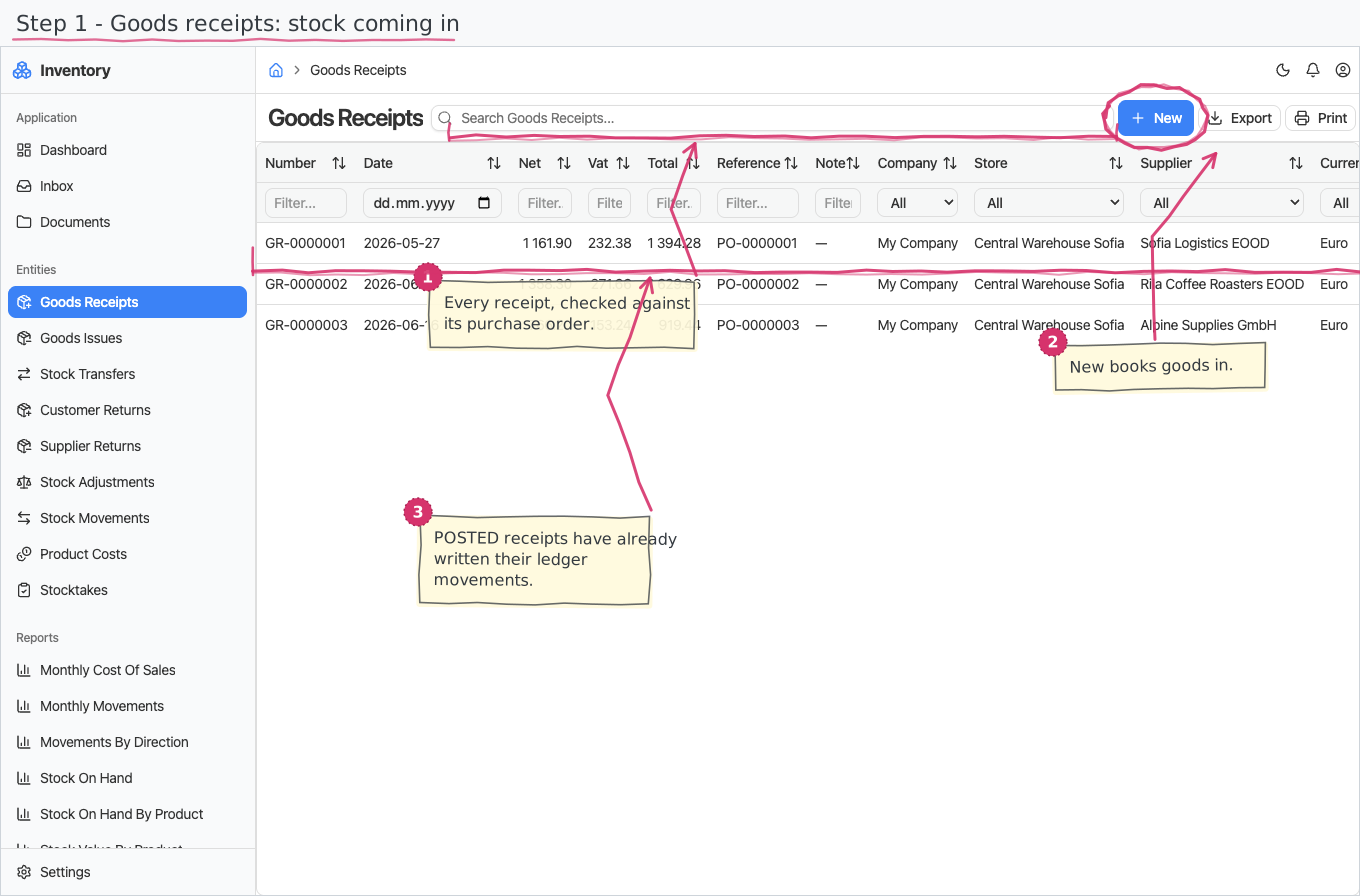
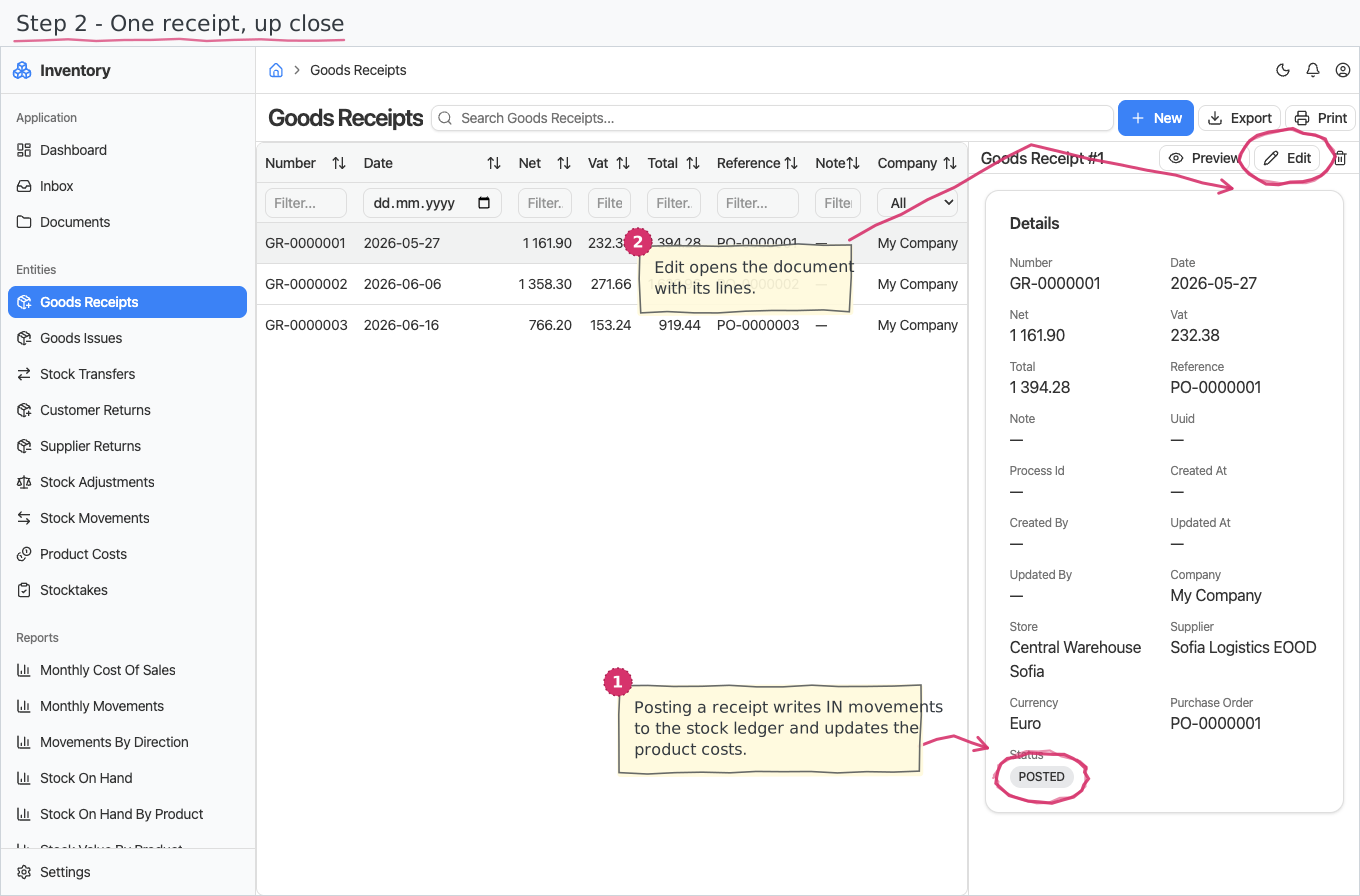
A goods receipt records goods arriving into a store — a header, a line-items table, and a totals footer:
- Header — you pick the receiving Store (required) and the date (required), optionally the Supplier who delivered (a receipt may also be an internal transfer), the Purchase Order it fulfils, a Currency, a free-text reference and a note. The Company starts pre-filled with your base company.
- Number — stamped automatically the moment the receipt is created; it is the document's title.
- Lines — pick a Product (required); its price, unit of measure and tax rate are copied from the product's defaults and stay editable. Enter the quantity; the VAT rate comes from the chosen tax rate (default 20%), and Net, VAT and Total calculate themselves. The footer sums Net, VAT, Total across the lines.
- Lifecycle & posting — a new receipt starts DRAFT and holds no stock while you are still entering it. A Post task lands in the approver's Inbox: on Post every line writes an IN movement (positive quantity) to the stock ledger — each movement linked back to this receipt — and the document becomes POSTED (final); on-hand in the store goes up at that moment. Reject marks it CANCELLED and stock never moves.
Goods Issues (stock out)
The mirror image — goods leaving a store. Same shape as a receipt, with a few differences:
- Instead of a supplier, you can optionally name the Customer the goods went to (or leave it empty for an internal transfer or a scrap issue), and the Sales Order the issue fulfils.
- The same DRAFT → POSTED / CANCELLED lifecycle: stock leaves the store only when the issue is posted from the Inbox — each line then writes an OUT movement (negative quantity), linked back to the issue.
- Create Delivery Note — one click on a goods issue creates the customer-facing delivery note from it: the customer, store, sales order and all lines are copied, and the note keeps a link back to the issue. No re-typing.
Stock Transfers (store to store)
Moving goods between your own locations is one document, not a hand-typed issue+receipt pair:
- Header — pick the From store and To store (both required) and the date; the number (TR…) is stamped automatically. Lines are just product + quantity — an internal move carries no money.
- Lifecycle & posting — the same DRAFT → POSTED / CANCELLED flow: on Post (from the Inbox) every line writes an OUT movement from the source store and an IN movement to the target store, both linked back to the transfer. On-hand shifts between the stores at that moment, never while you are still typing.
Customer Returns (goods back from a customer)
When a customer brings goods back, that is a receipt from a customer — its own document:
- Header — the receiving Store and the Customer (both required), the date, optionally the original Goods Issue being reversed (the document trail), a reason and the currency. The number (CRET…) is automatic.
- Lines — like a goods receipt: product, quantity, price (pre-filled from the product, editable — the commercial value being credited), VAT and line totals with a footer.
- Posting — on Post, each line returns the quantity into stock (IN movements linked to the return). Commercially a return usually pairs with a credit note on the billing side.
Supplier Returns (goods back to a supplier)
The mirror: returning goods to the vendor —
- Header — the Store and Supplier (required), the date, optionally the original Goods Receipt being reversed, a reason. The number (SRET…) is automatic.
- Lines — product, quantity, price (the acquisition price you are being credited), VAT and totals.
- Posting — on Post, each line takes the quantity out of stock (OUT movements linked to the return).
Stock Adjustments (corrections)
A stock adjustment corrects the ledger to reality — after a physical count, damage, loss:
- Header — the Store (required), the date (required), the adjustment Type (required, defaults to COUNT; also DAMAGE, LOSS, FOUND, WASTE — a reason label, not a different kind of document) and a free-text reason. The number is stamped automatically.
- Lines — pick a Product (required; only stock-tracked products are offered — never services; its unit of measure is copied from the product) and enter the adjusted quantity, which is signed: positive raises on-hand, negative lowers it. A free-text note per line is optional.
- Posting — each line is posted to the ledger verbatim, with the direction taken from the sign of the quantity and a link back to the adjustment.
Stocktakes (warehouse audit)
The counting ritual, as a document of its own:
- Open a stocktake for a store and a date — it is numbered automatically (STK…) and starts DRAFT.
- Count: add one line per product with the counted quantity (the product picker offers only stock-tracked products — never services; the unit comes from the product).
- Post — the task lands in the approver's Inbox. On Post, every line is filled in with the system quantity (the live ledger sum at that moment) and the variance (counted − system), so the posted document records exactly what was found. All non-zero variances become one COUNT stock adjustment, whose lines flow into the ledger like any correction — on-hand snaps to what you counted. Reject cancels the stocktake; a clean count (no variances) posts nothing.
- Full revision — tick zero uncounted before posting and products that have stock on hand in the store but are missing from your count get a zeroing line (counted 0, variance = −on-hand), documented on the stocktake itself.
Stock Movements (the ledger)
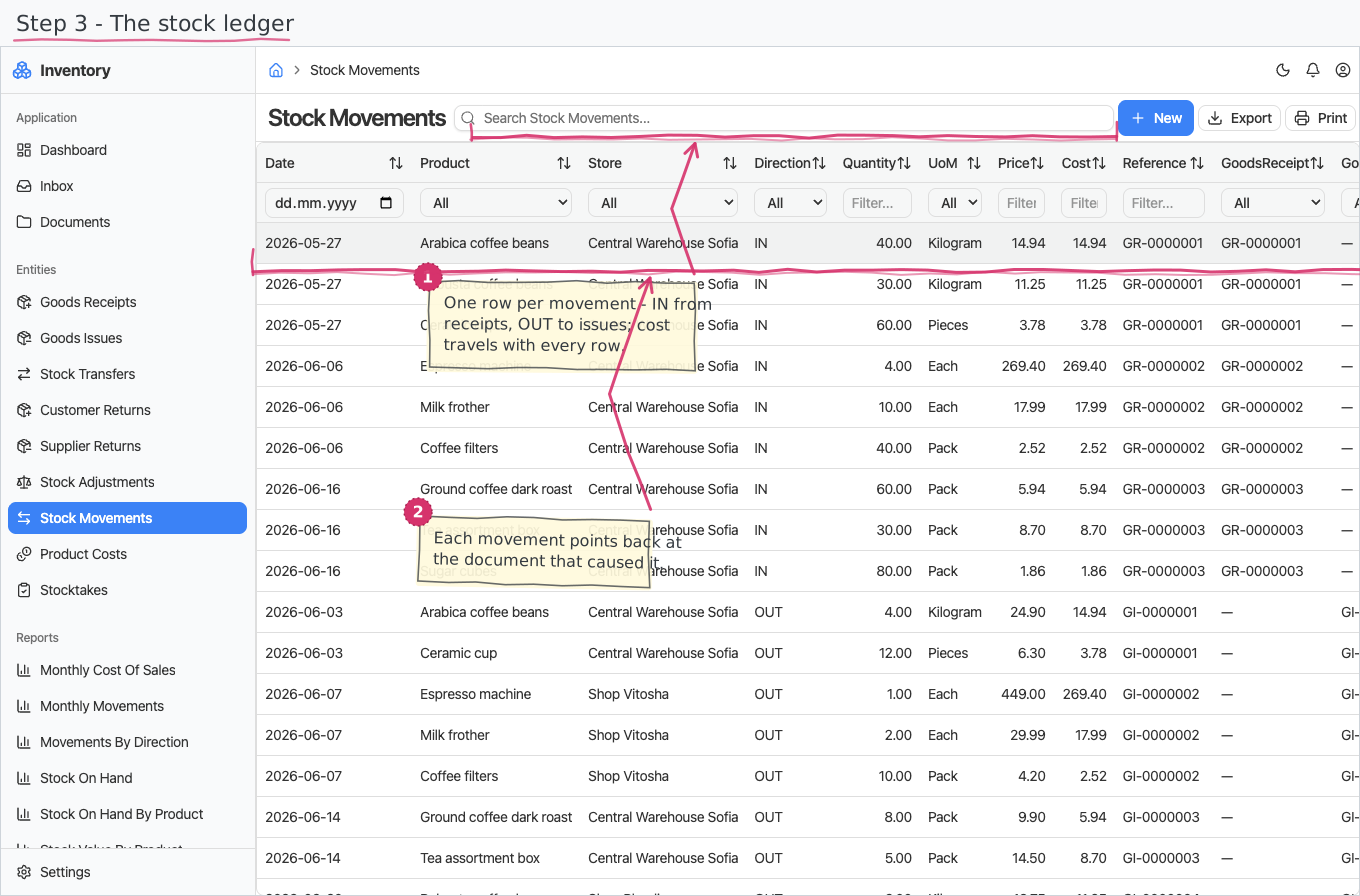
The ledger itself is browsable: one line per movement with date, product, store, direction (IN/OUT), signed quantity, unit, price, the valuation cost (the purchase price on receipts and on returns to suppliers, the moving average everywhere else — see Product Costs below), the source document's number and a link to the document (receipt, issue, transfer, return or adjustment) that posted the line, and a note. The goods documents above fill it for you, but you can also add movements directly — the way to enter opening balances or a one-off correction without a document.
Availability
There is no separately maintained "stock" number to drift out of date: on-hand is always the live sum of the signed ledger quantities per product and store — see the reports below.
Product Costs (what your stock is worth)
Every product carries a moving average cost, maintained automatically from what you actually pay:
- A goods receipt brings goods in at its price — the average recalculates. Issues, transfers and customer returns are valued at the current average automatically; a return to the supplier goes back out at its purchase price (it is the negative of the receipt); a transfer between stores never changes the average.
- The Product Costs list shows each product's on-hand quantity, average cost and total stock value. These rows are bookkeeping the system maintains — you never edit them.
- Entering opening balances as direct stock movements: put the unit cost in the movement's price and it becomes the product's starting cost.
Printing
Every goods document - receipts, issues, transfers, stock adjustments, stocktakes and customer/supplier returns print to a branded standard layout. Open the document and use Print to view it or save it as PDF; the template lives under Documents and can be customised per company. See how printing works for the shared mechanics. The documents print in Bulgarian or English — the Print button asks which language you want.
Reports & dashboard
- Stock on Hand — on-hand quantity per product and store (the live ledger sum).
- Stock on Hand by Product — on-hand per product across all stores; also a dashboard top-5 list widget.
- Movements by Direction — movement count and net quantity in vs. out.
- Monthly Movements — ledger movements per month as a bar chart.
- Stock Value — on-hand quantity, average cost and stock value per product; also a dashboard top-5 list widget.
- Monthly Cost Of Sales — what the goods you issued actually cost you, per month (a bar chart; goods issues only — transfers and returns don't count as sales).
Settings
- Stock Directions — the ledger classification (IN, OUT pre-seeded).
- Stock Adjustment Types — why an adjustment happened (COUNT, DAMAGE, LOSS, FOUND, WASTE pre-seeded; add your own).
- Goods Receipt / Goods Issue / Stock Transfer / Customer Return / Supplier Return / Stocktake Statuses — DRAFT, POSTED, CANCELLED (pre-seeded).
- Negative-stock policy (operator setting, not on the Settings page): by default a store may go below zero (post now, receive the paperwork later). Your operator can switch the deployment to blocked — then posting a goods issue, transfer or supplier return that would over-issue a product fails with a message naming the product and the shortage, and the document stays DRAFT until stock suffices. Corrections (adjustments, stocktakes) are never blocked — they record reality.
Shipped data
Directions and adjustment types are pre-seeded (above); a new company starts with an empty ledger — enter opening balances as direct stock movements or a COUNT adjustment. The optional demo-data companion adds 3 posted goods receipts, 4 posted goods issues, their ledger movements and the resulting product costs (all pre-rolled) for trials.
Works together with
- Stores — every document and ledger line targets a store; availability is per store.
- Products / Units of Measure / Tax Rates — line defaults come from the product catalogue.
- Suppliers — who delivered a goods receipt or takes a return back; Customers — who a goods issue went to or who returns goods.
- Sales Invoices — a customer return usually pairs with a credit note on the billing side.
- Purchase / Sales Orders — a goods receipt names the purchase order it fulfils, a goods issue the sales order — the document trail is clickable in both directions.
- Delivery Notes — created one-click from a goods issue (the printable, customer-facing paper); the note links back to the issue.
- Document numbering (built into the platform) — the receipt, issue and adjustment number series; Companies and Currencies — the document header defaults.