

Sales Orders
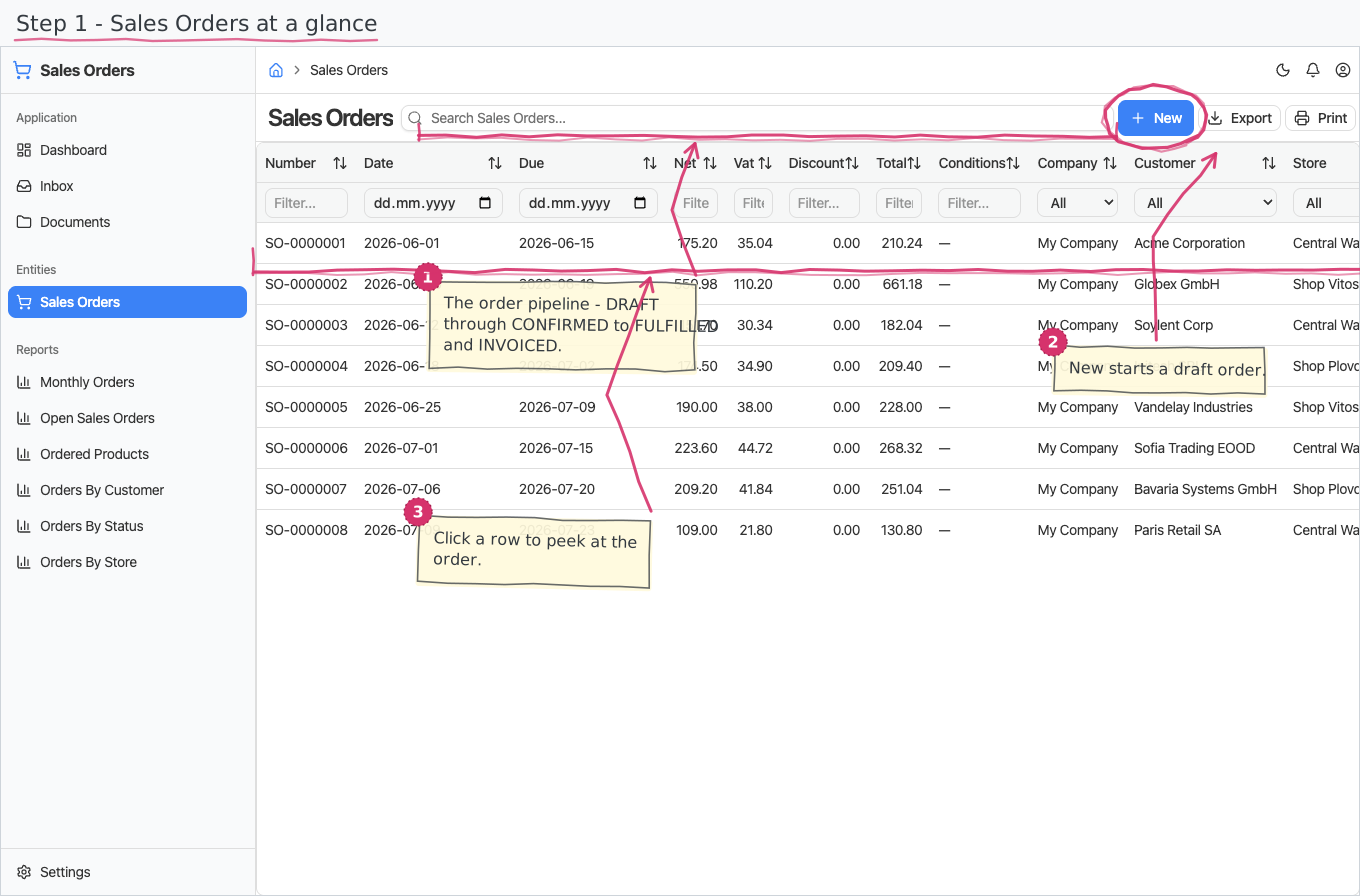
Take your customers' orders: a numbered document with line items and totals, confirmed (or rejected) through a one-step approval, then handed over to fulfilment and invoicing.
Where you find it: the Sales sidebar group (its status nomenclature is on the Settings page). Bundled in Logistics, Retail and Wholesale; shown by the Store lens.
The tour in pictures
What you can do
Sales Orders
An order is a document: a header, a line-items table, and a totals footer.
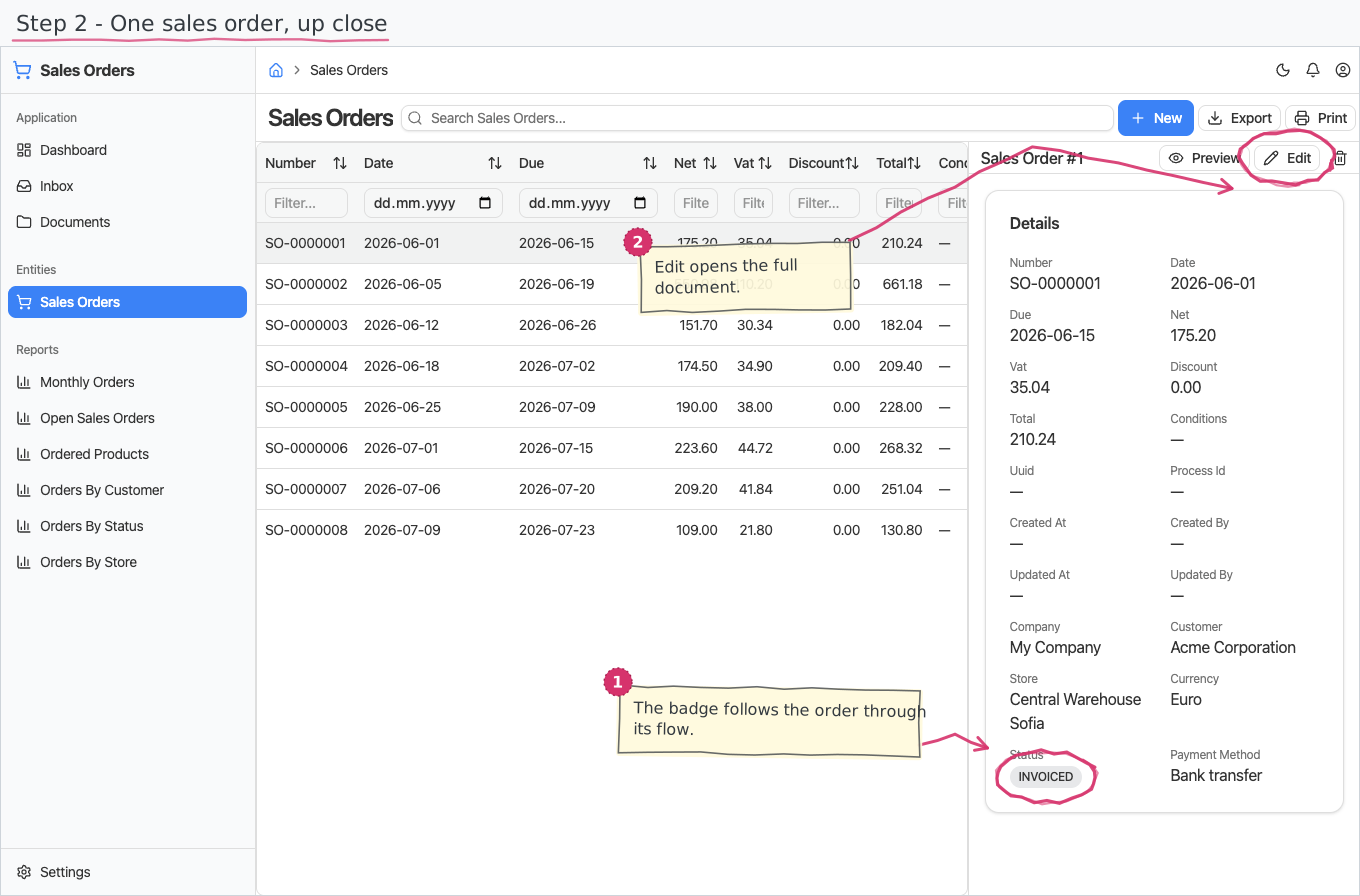
- Header — you pick the Customer (required) and the order date, optionally a due date, the fulfilling Store (where the goods will eventually be issued from) and free-text conditions. The issuing Company (your base company) and the Payment method (Bank transfer) start pre-filled; Currency is a plain pick — all editable.
- Number — you never type it. The sequential SO-number is stamped the moment the order is placed (unlike invoices, which are numbered only at issue), using the shared document-numbering series. The number is the document's title ("SALES ORDER SO-…").
- Status pill — the title bar shows the status as a coloured badge: DRAFT → CONFIRMED, with CANCELLED (rejected). FULFILLED and INVOICED are seeded for the planned cross-document flows — today nothing sets them, and a fulfilled order keeps showing CONFIRMED.
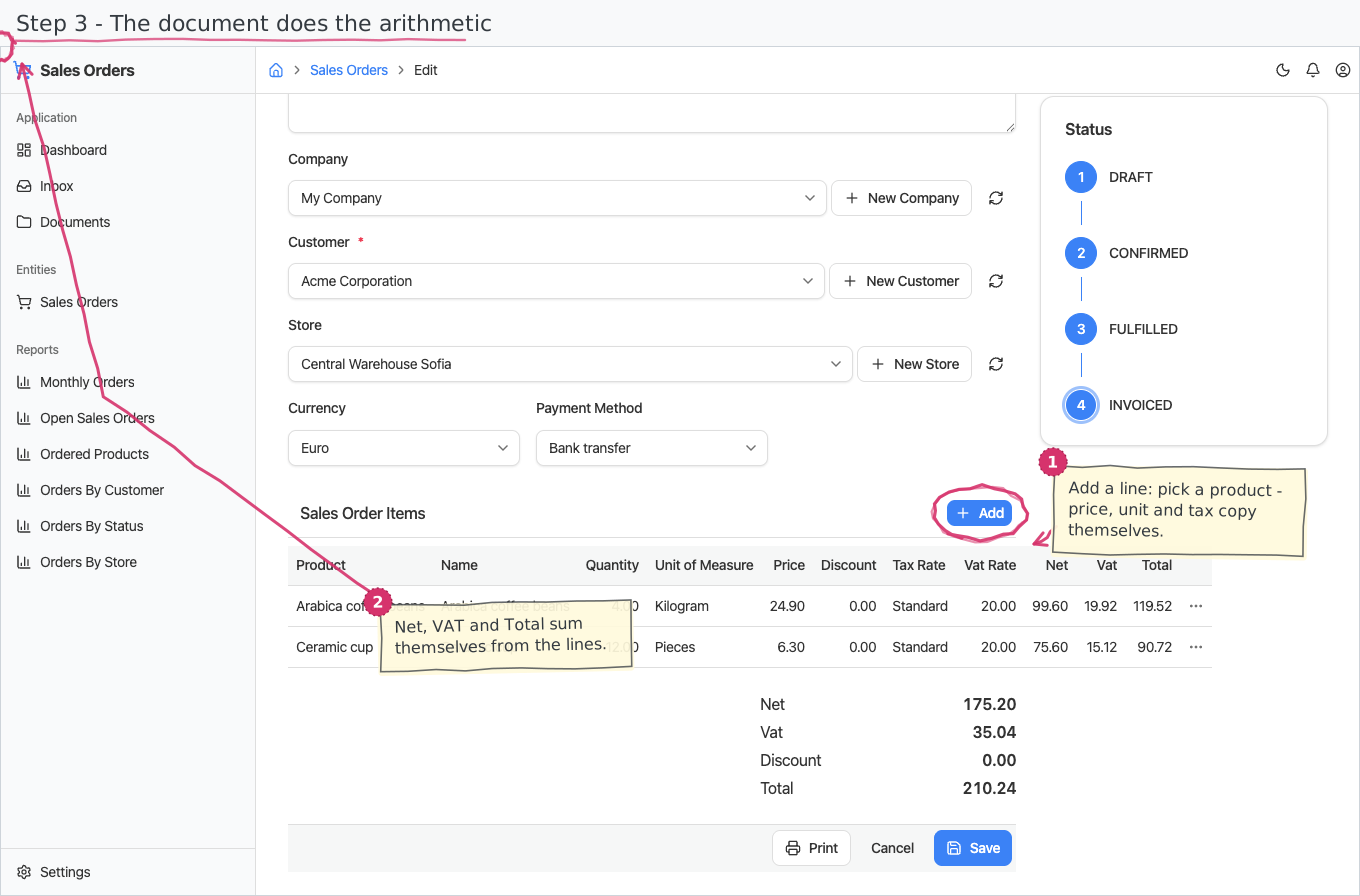
- Totals footer — Net, VAT, Discount, Total are read-only sums over the line items. You never edit them.
Order lines
Add lines in the items table; each line does most of the arithmetic for you:
- Pick a Product — the line's price is copied from the product's default, and the unit of measure and tax rate dropdowns narrow to the product's own. All stay editable per line.
- Enter the quantity (and a discount if any).
- Net (= quantity × price), VAT (from the line's VAT-rate, default 20%) and Total (= net + VAT − discount) calculate themselves.
Lines without a product work too — type a free-text name and a price.
The confirm flow (who does what)
Every new order starts a small workflow; the task appears in the assignee's Inbox and inline on the order itself:
- Confirm — the approver sees number, dates, customer, store and total, and confirms or rejects. Confirm moves the order to CONFIRMED; reject cancels it (CANCELLED).
Fulfilment (the goods issue that draws stock from the store) and invoicing happen as separate documents in the store app once the order is CONFIRMED. They reference the order but leave its status untouched — flipping it to FULFILLED / INVOICED automatically is planned, not built.
Printing
Sales orders print to a branded standard layout. Open the document and use Print to view it or save it as PDF; the template lives under Documents and can be customised per company. See how printing works for the shared mechanics. The layout ships in English and Bulgarian — the Print button asks which language you want. On the Bulgarian printout your own company's details (name, address, manager/МОЛ, bank) come from the local-language fields of the company profile (see Companies); the customer's details print as you entered them.
Reports & dashboard
Which orders count. Order figures cover orders actually placed - confirmed, fulfilled and invoiced. A draft was never placed and a cancelled order is retired, so neither counts; an order already shipped and invoiced still counts, because it was genuinely ordered. Orders by Status is the exception: it shows every order, each status in its own row.
- Orders by Customer — order count and value per customer.
- Orders by Status — the pipeline: how many orders, worth how much, in each status.
- Orders by Store — order count and value per fulfilling store.
- Open Sales Orders — confirmed orders not yet fulfilled, invoiced or cancelled; also a dashboard counter widget.
- Ordered Products — quantity and value per product; a dashboard top-5 list widget ("Most Ordered Products").
- Monthly Orders — ordered value per month as a bar chart; feeds the dashboard "Orders (this month)" KPI.
Settings
- Sales Order Statuses — the status nomenclature (DRAFT, CONFIRMED, FULFILLED, INVOICED, CANCELLED pre-seeded; changing names changes the badges everywhere).
Shipped data
The statuses are pre-seeded (above); a new company starts with no orders. The optional demo-data companion adds 8 demo orders (a DRAFT→INVOICED pipeline, 17 lines over the demo product catalogue, totals pre-rolled) for trials.
Works together with
- Customers — the order's counterparty; Stores — where the order will be fulfilled from.
- Products / Units of Measure / Tax Rates — line defaults come from the product catalogue.
- Companies — the issuing company; Payment Methods — how the customer will pay.
- Document numbering (built into the platform) — the "Sales Order" number series.
- The store app — turns a CONFIRMED order into a goods issue and an invoice (see Sales Invoices).