

Purchase Invoices
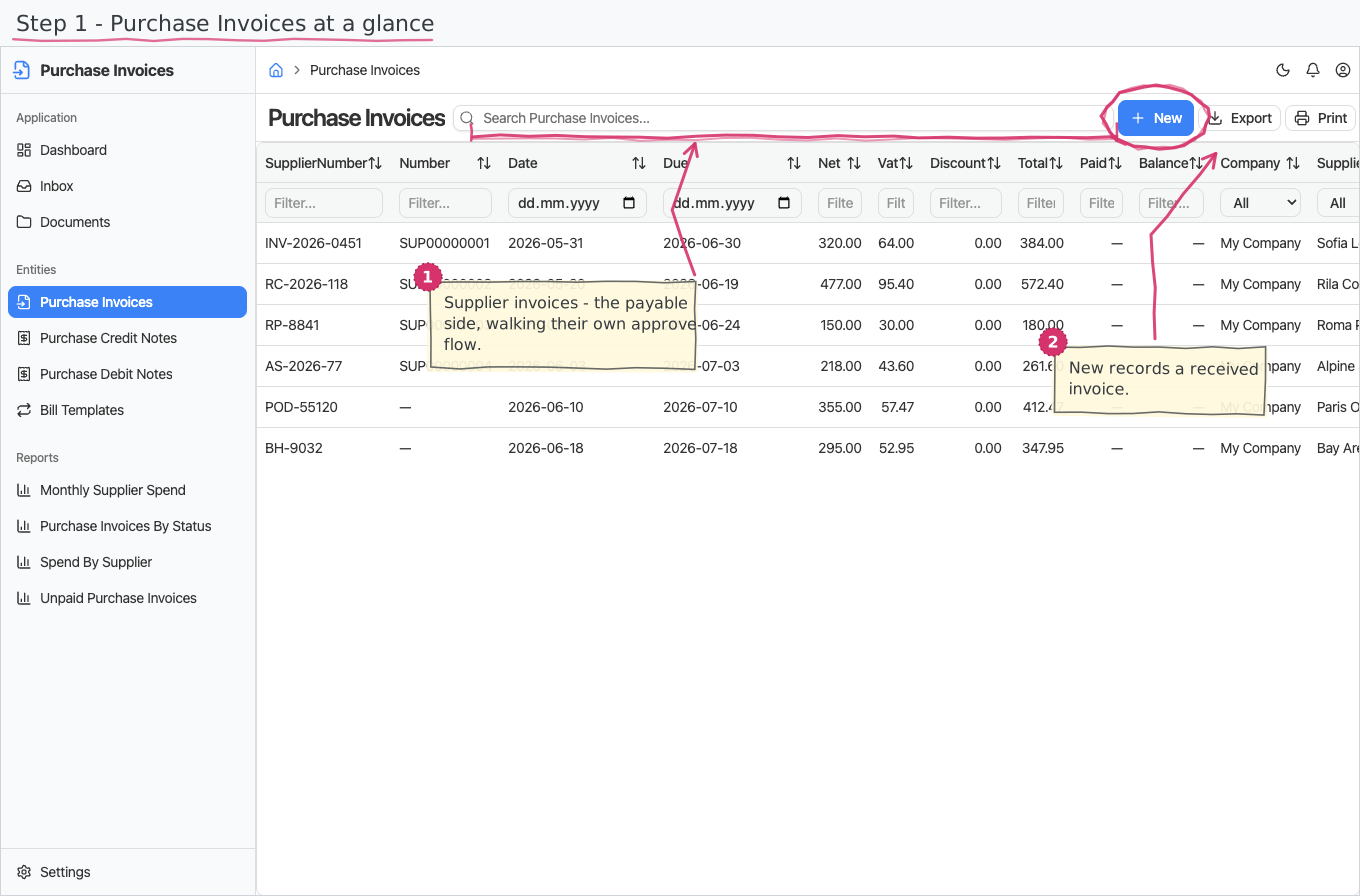
Register the invoices your suppliers send you (accounts payable), take each one through an approve → pay flow, and keep an eye on what is still unpaid.
Where you find it: the Purchases sidebar group (its status nomenclature is on the Settings page). Bundled in Construction, Logistics, Retail and Wholesale; shown by the Purchase lens.
The tour in pictures
What you can do
Purchase Invoices
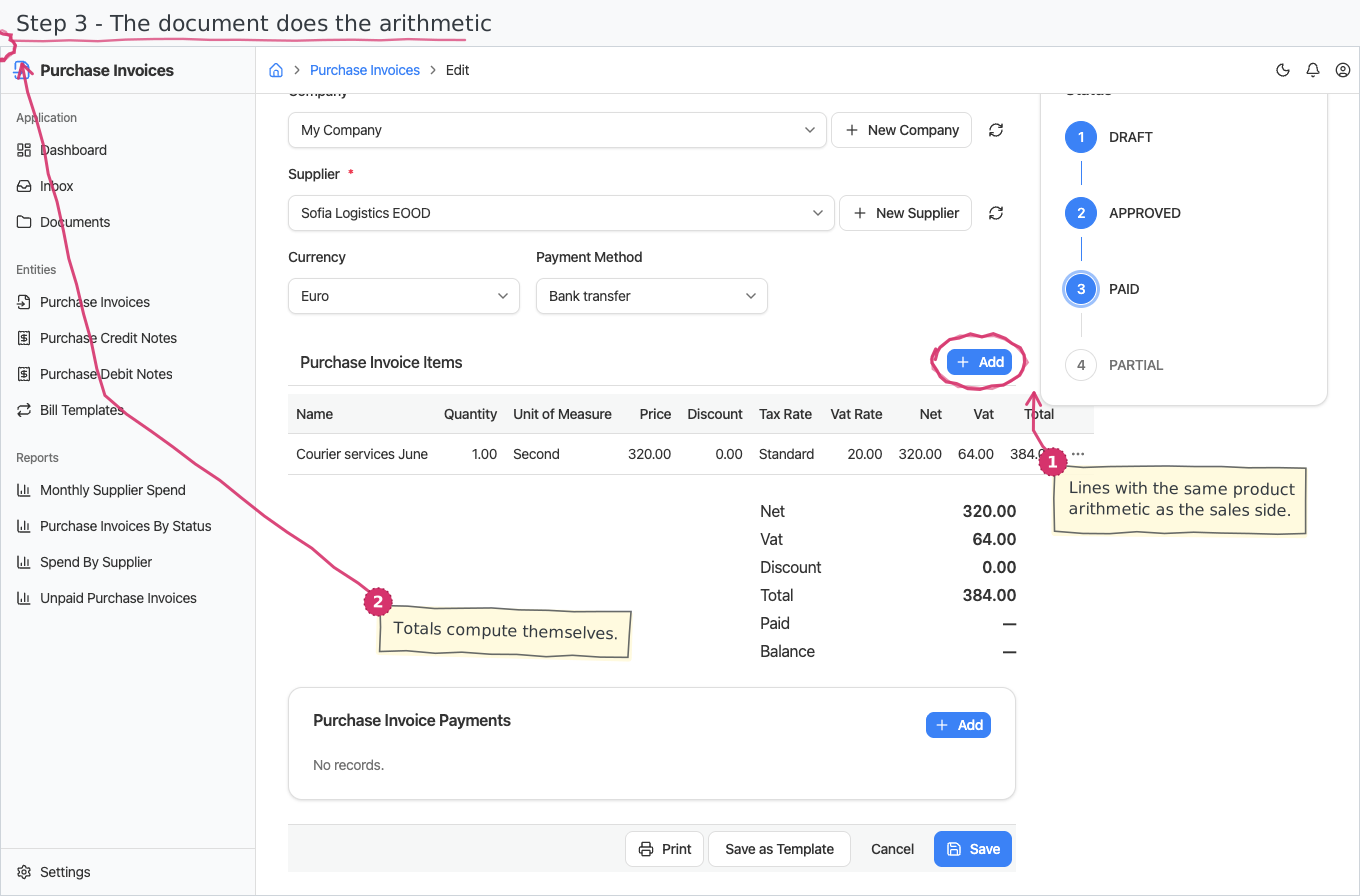
A purchase invoice is a document: a header, a line-items table, and a totals footer.
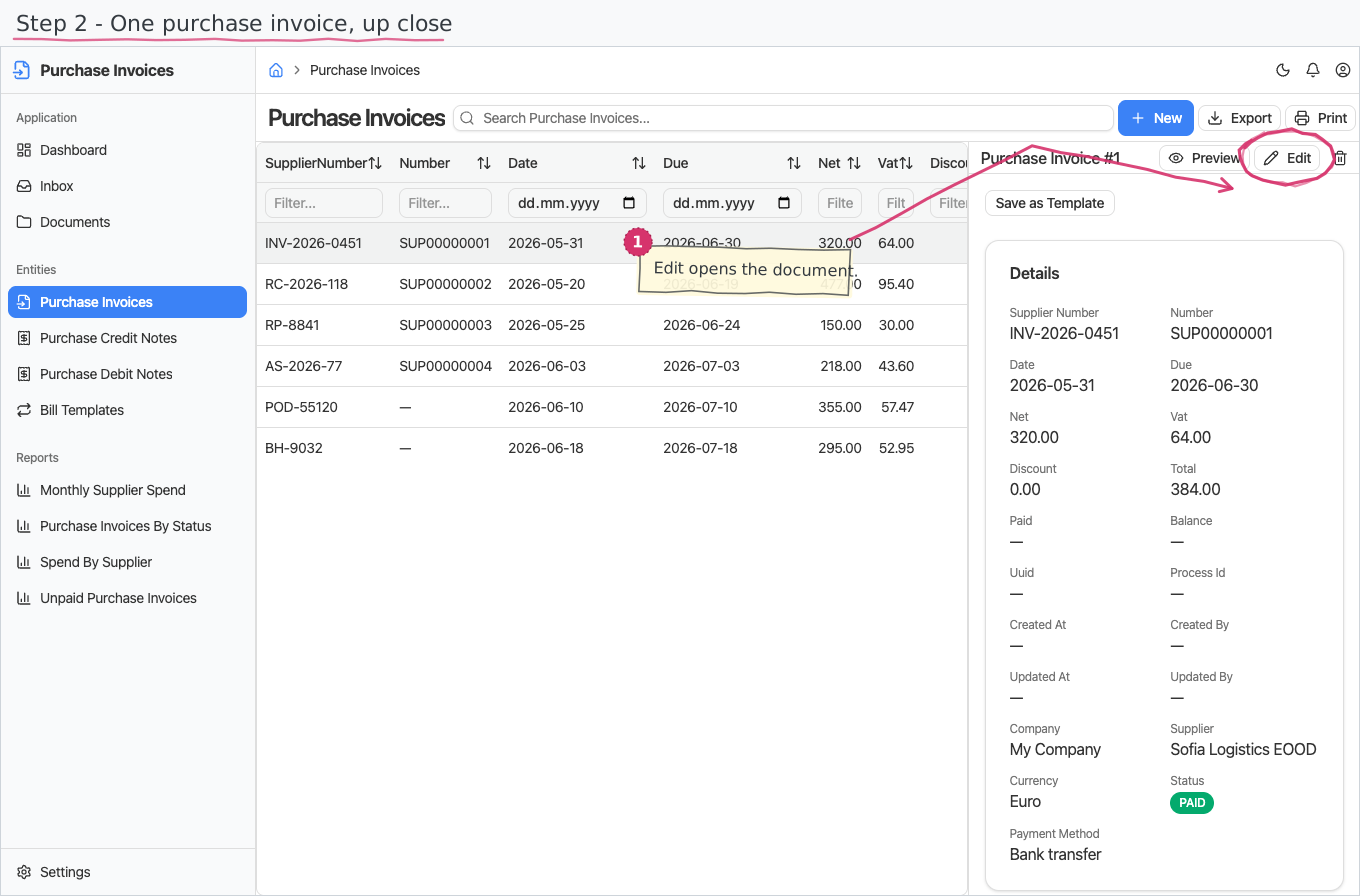
- Header — you enter the supplier's invoice number (required — it is the document's title, "PURCHASE INVOICE INV-2026-0451") and the invoice date, optionally a due date, and pick the Supplier (required). The receiving Company (your base company), the Currency and the Payment method (Bank transfer) start pre-filled — all editable.
- Registration number — your own internal number. You never type it: a new invoice shows a placeholder, and the real sequential number from the shared "Purchase Invoice" series is stamped automatically the moment the invoice is approved (see the flow below).
- Status pill — the title bar shows the status as a coloured badge: DRAFT → APPROVED → PAID, with CANCELLED for rejected invoices.
- Totals footer — Net, VAT, Discount, Total are read-only sums over the line items.
Invoice lines
Lines are free-text — you copy them off the supplier's paper, there is no product picker:
- Type the line name, the quantity and the price (and a discount if any); pick a unit of measure if you want one.
- Pick a Tax rate — the line's VAT rate is copied from it (default 20%); it stays editable.
- Net (= quantity × price), VAT (from the VAT rate) and Total (= net + VAT − discount) calculate themselves.
The approval flow (who does what)
Every new purchase invoice starts a small workflow; the tasks appear in the assignees' Inbox and inline on the invoice itself:
- Approve — the approver sees the supplier number, registration number, dates, supplier and total, and approves or rejects. Reject cancels the invoice (CANCELLED); approve moves it to APPROVED and stamps the sequential registration number.
- Pay — the payer sees the numbers, supplier, total and payment method, and confirms the payment; the invoice becomes PAID.
There is no automatic payment settlement — marking an invoice paid is a deliberate, single Pay task (partial payments are not tracked here).
Printing
Purchase invoices and their credit and debit notes print to a branded standard layout. Open the document and use Print to view it or save it as PDF; the template lives under Documents and can be customised per company. See how printing works for the shared mechanics. The layout ships in English and Bulgarian — the Print button asks which language you want. On the Bulgarian printout your own company's details (name, address, manager/МОЛ, bank) come from the local-language fields of the company profile (see Companies); the supplier's details print as you entered them.
Reports & dashboard
Which invoices count. Spend figures cover invoices you are actually committed to - approved, partially paid and paid. Drafts are not yet an obligation and cancelled invoices are retired, so neither counts. Purchase Invoices by Status is the exception: it shows every invoice, each status in its own row.
- Spend by Supplier — purchase invoice count and value per supplier.
- Purchase Invoices by Status — the payables pipeline: how many invoices, worth how much, in each status.
- Unpaid Purchase Invoices — everything not yet paid or cancelled, with dates and totals; also a dashboard counter widget.
- Monthly Supplier Spend — purchase spend per month as a bar chart; feeds the dashboard "Spend (this month)" KPI.
Settings
- Purchase Invoice Statuses — the status nomenclature (DRAFT, APPROVED, PAID, CANCELLED pre-seeded; changing names changes the badges everywhere).
Shipped data
Statuses are pre-seeded (above); a new company starts with no purchase invoices. The optional demo-data companion ships a handful of demo invoices with their lines — already numbered and in final statuses — for trials.
Works together with
- Suppliers — the invoice's counterparty.
- Units of Measure / Tax Rates — the line dropdowns; the VAT rate is copied from the chosen tax rate.
- Companies — the receiving company; Payment Methods — how the invoice gets paid; Currencies — the invoice currency.
- Document numbering (built into the platform) — the "Purchase Invoice" registration-number series.